Editing forms:
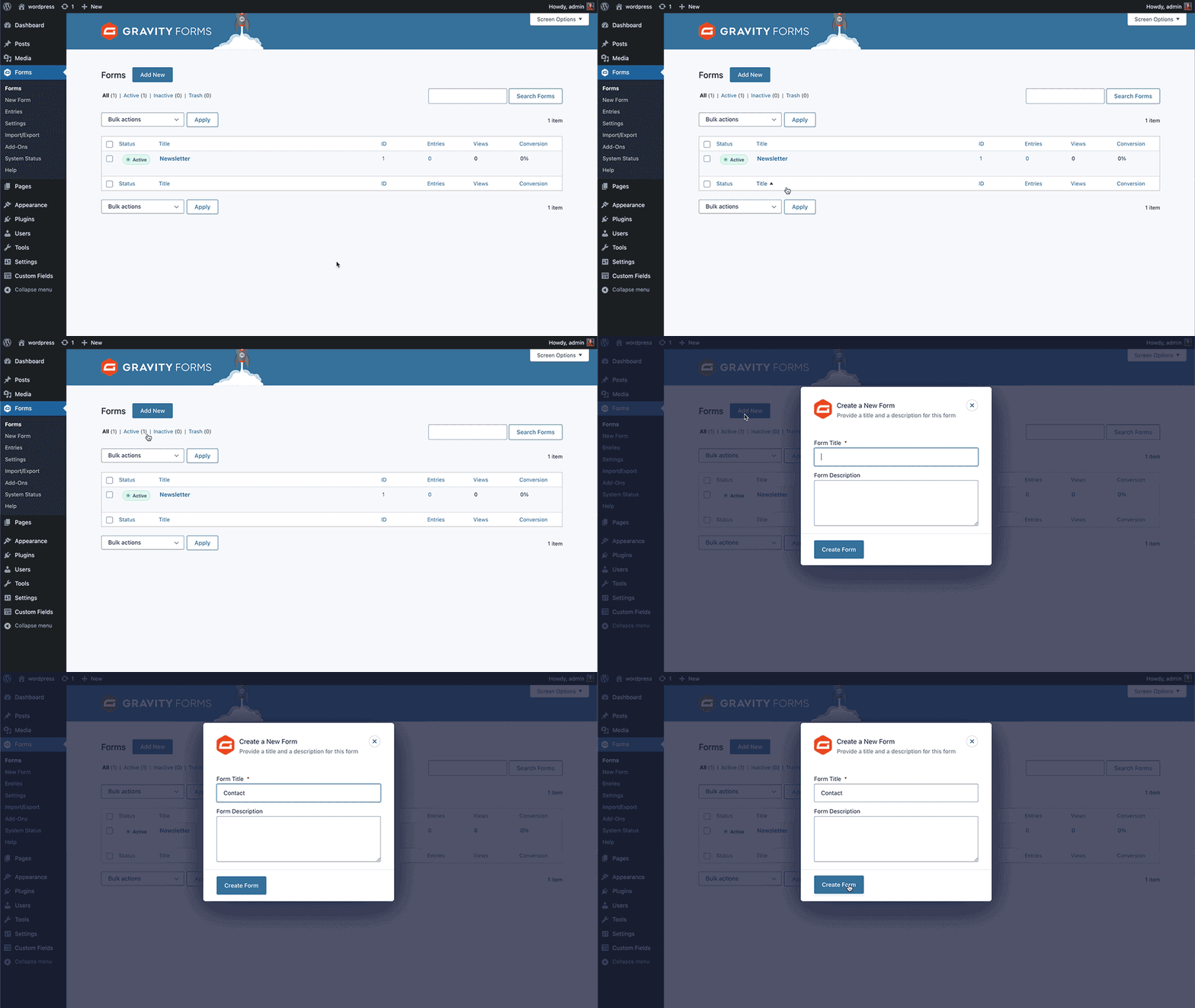
To edit forms on your site, start with clicking the FORMS link in the admin menu.
Click the form you wish to edit in the list or click the blue ADD NEW button. A new form will require a title. The description is optional.
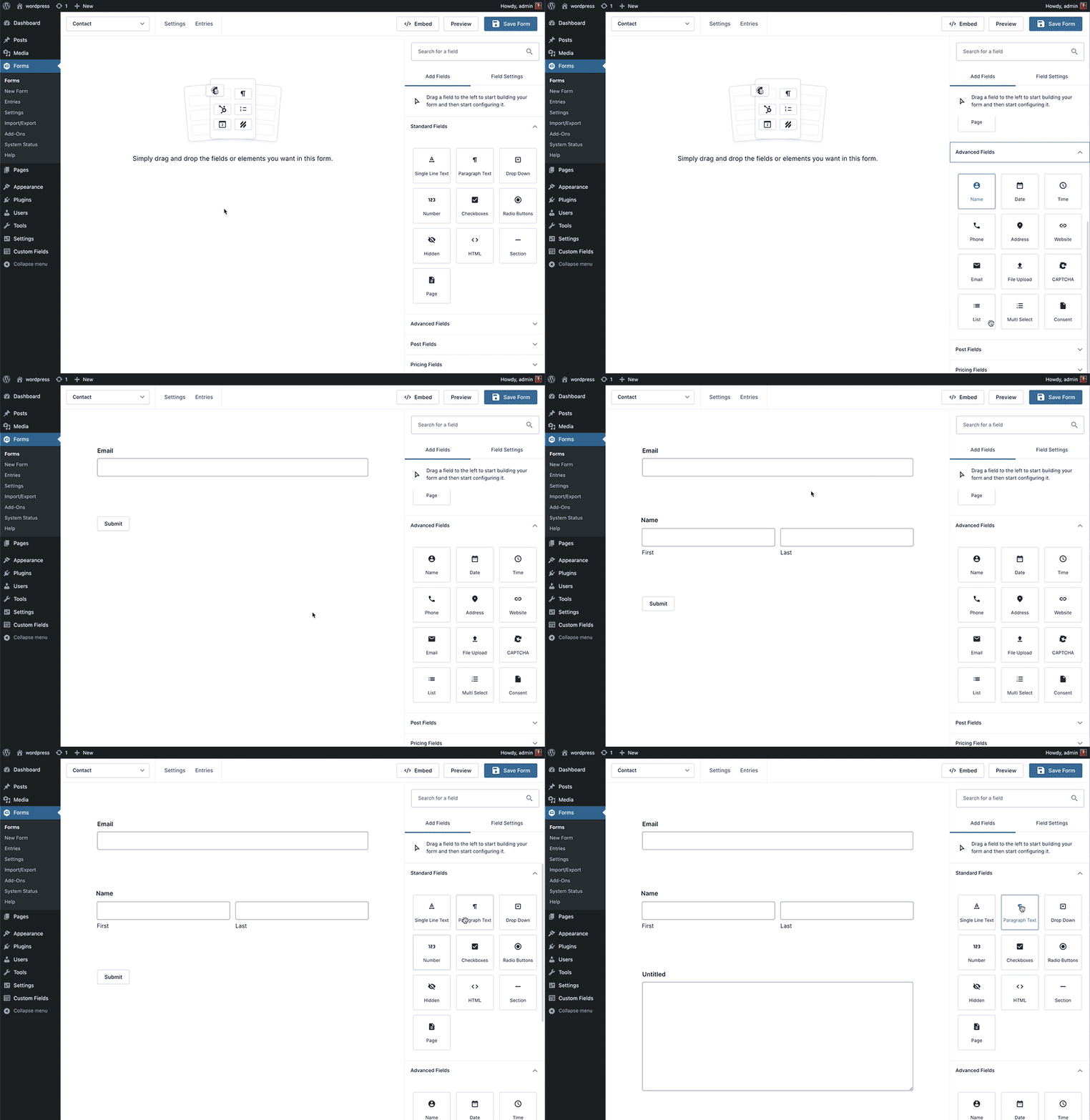
In the form editor, you can use the drag-and-drop builder, fields, and customisation tools to create the form you want.
You can expand the accordions to reveal more field types.
To add a field click or drag the field to where you would like them to appear in the form.
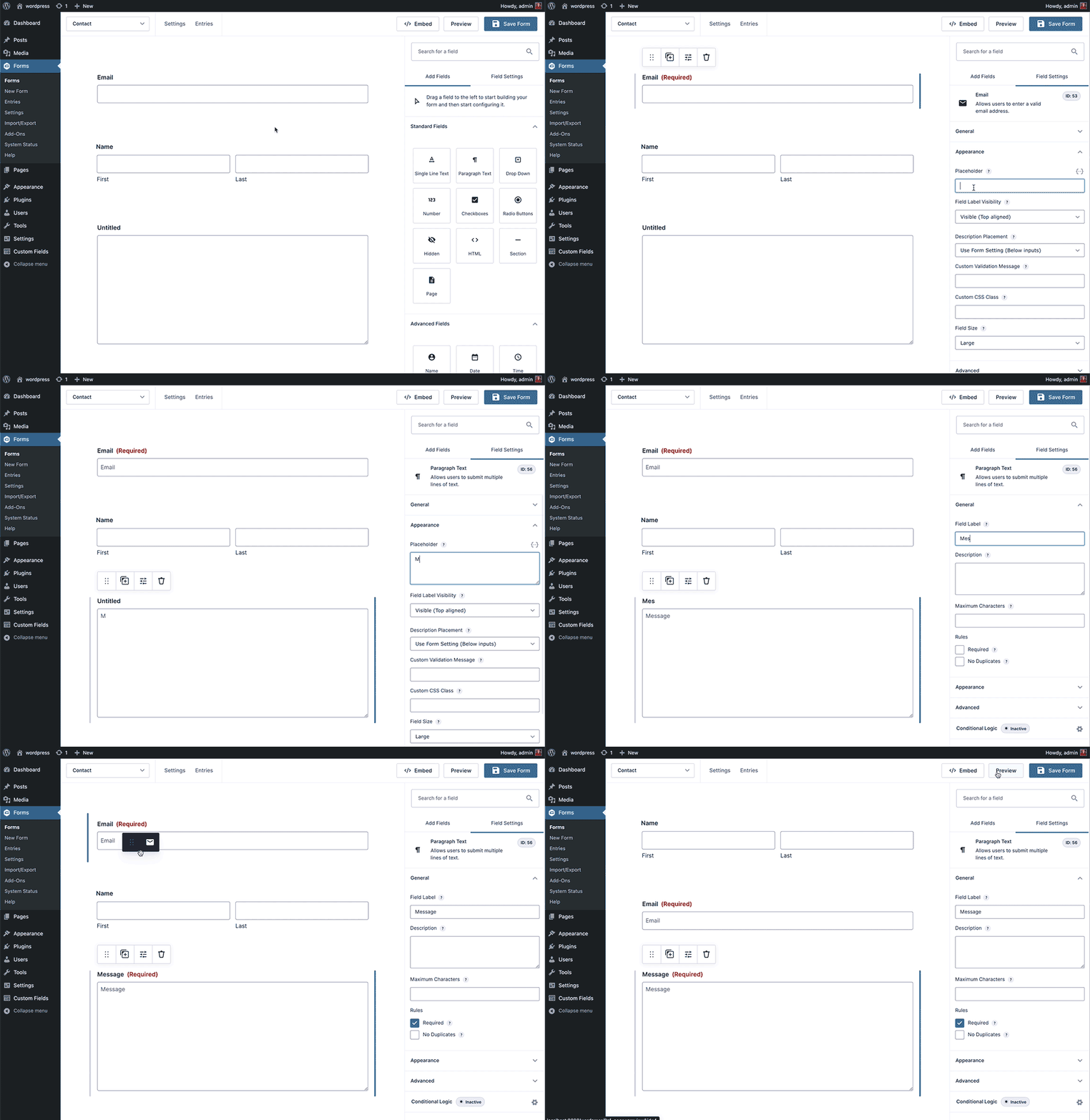
You can edit individual form fields by clicking on the field. Here you can fine tune the options for this field. Including the field label, and other available options, including the appearance and more advance options.
You can also specify whether or not this field is required before the form can be submitted.
You can reorder fields by simply dragging and dropping them into any order you like.
When you have finished updating you can preview your form by pressing the PREVIEW button, make sure you click the blue SAVE FORM button so your changes are saved.
Form settings (Conformations):
Form conformations are what visitors see when they submit a form.
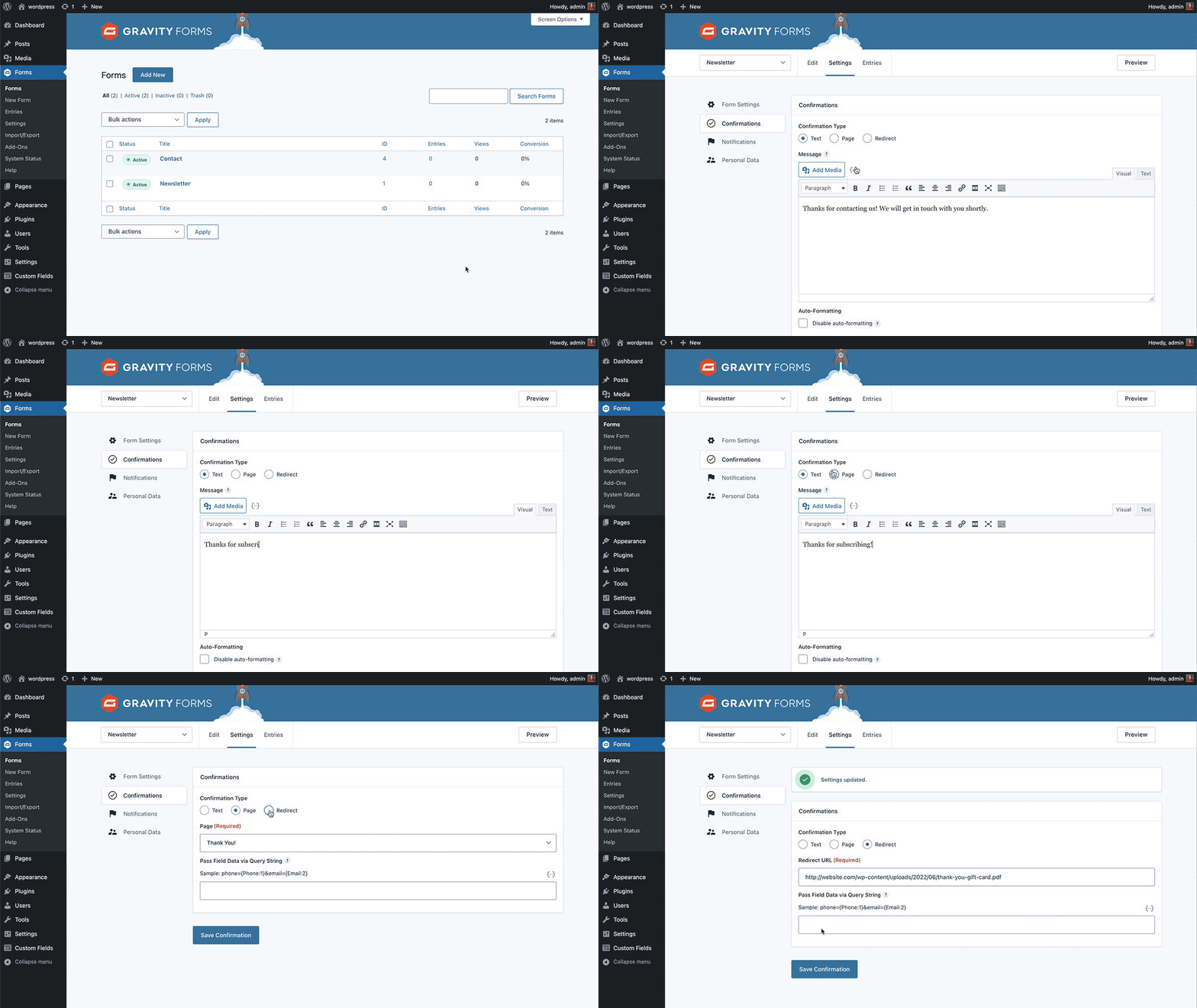
To edit form conformations, go to settings and choose conformations from the dropdown and click the conformation to edit it.
When someone fills out your form, by default they will be shown text that says 'Thanks for contacting us! We will get in touch with you shortly.' You can change the text or make it so the user is redirected to a page or file. To edit the message, select edit and type in your message into the text field. If you want the visitor to be sent to a page instead, simply select page and choose the page from the dropdown. To redirect visitors to a specific url, select redirect and type the url. For example a link to a pdf or a separate website.
Make sure you click the blue SAVE CONFORMATION button to save changes.
Form settings (notifications):
The next important step is that you create the right notifications, for your website visitor and for you the website owner, so that you will receive an email when someone fills in the form.
Admin Notification:
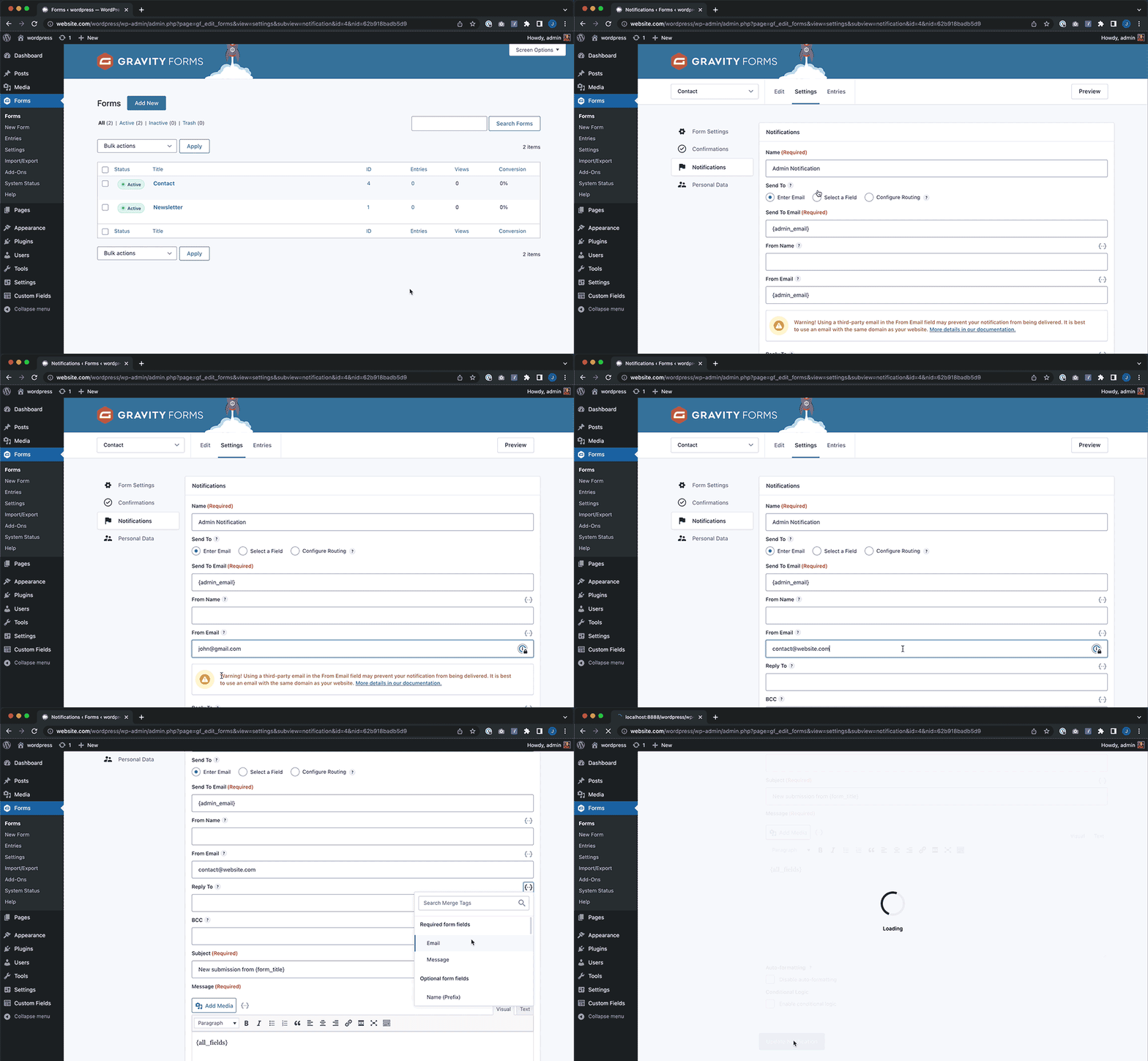
In forms hover over settings and choose notifications from the dropdown and click the Admin Notification to edit it. Admin Notification is the main notification that should only be for the website owner.
By default the Admin Notification email is sent to {admin_email}, the Administration Email Address in general settigns. The SEND TO EMAIL can stay as {admin_email} or you can change the email to your email or one of your staff emails. The FROM EMAIL should use the same domain as the website, to prevent the email going to spam. For example contact@https://reframingautism.z.thrivex.io. If your admin email does end with @https://reframingautism.z.thrivex.io then you can leave the FROM EMAIL as {admin_email}. Set the REPLY EMAIL to the visitor email by clicking the merge tag icon {··} and selecting the email field from the dropdown. So that you can immediately reply to the notification when you receive it. Make sure you click the blue UPDATE NOTIFICATION button before leaving.
Visitor Notification (optional):
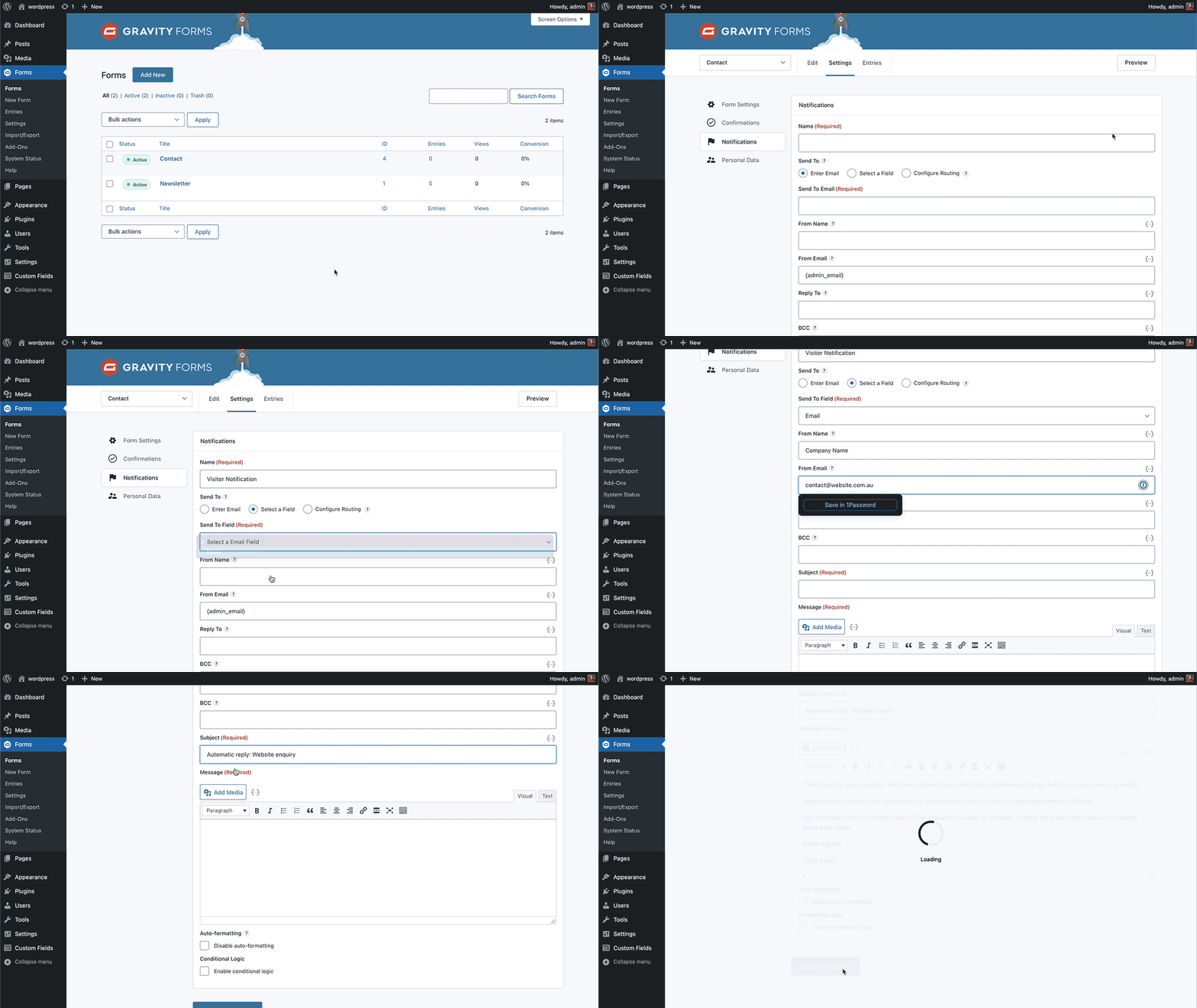
Follow these steps if you want to automatically send the visitor an email when they submit the form, such as a 'thank you' email. Go back to notifications and click the ADD NEW button Name the new notification 'Visitor Notification' or whatever you'd like. Change the SEND TO to Select a Field Select EMAIL from the dropdown You can set the FROM NAME as what ever you want, such as the company name or your name. Again the FROM EMAIL should use the same domain as the website, to prevent the email going to spam. For example contact@https://reframingautism.z.thrivex.io. Make the SUBJECT whatever you want. For example 'Thanks for contacting us' Make the MESSAGE whatever you want. For example 'Thanks for contacting us' Make sure you click the blue UPDATE NOTIFICATION button.
Adding forms to pages:
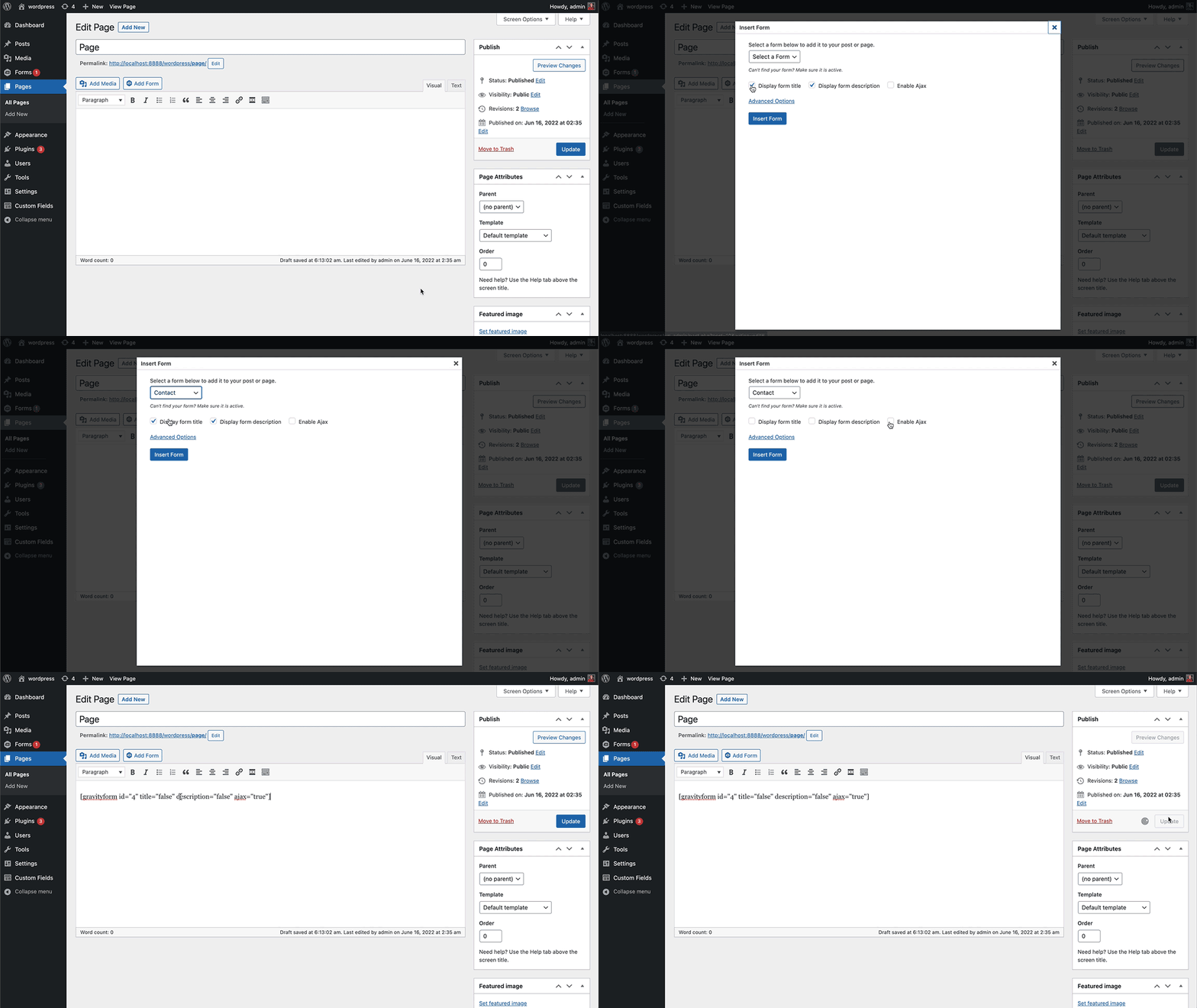
From the Page or Post Editor, click the Add Form button in the Upload/Insert toolbar. This is located to the left of the Visual/Text tabs in the body text editor. Clicking the Add Form button will activate the Insert A Form modal window. Select a form from the Select a Form dropdown. Once you have selected a form, you can specify whether or not to display the form title and description or enable AJAX: Enabling AJAX allows the form to be submitted without refreshing the page. After you have specified your desired options, click the blue INSERT FORM button.
Make sure to click the blue UPDATE button to save your changes to the page.
Adding forms to pages (Wordpress 5.0+ block editor):
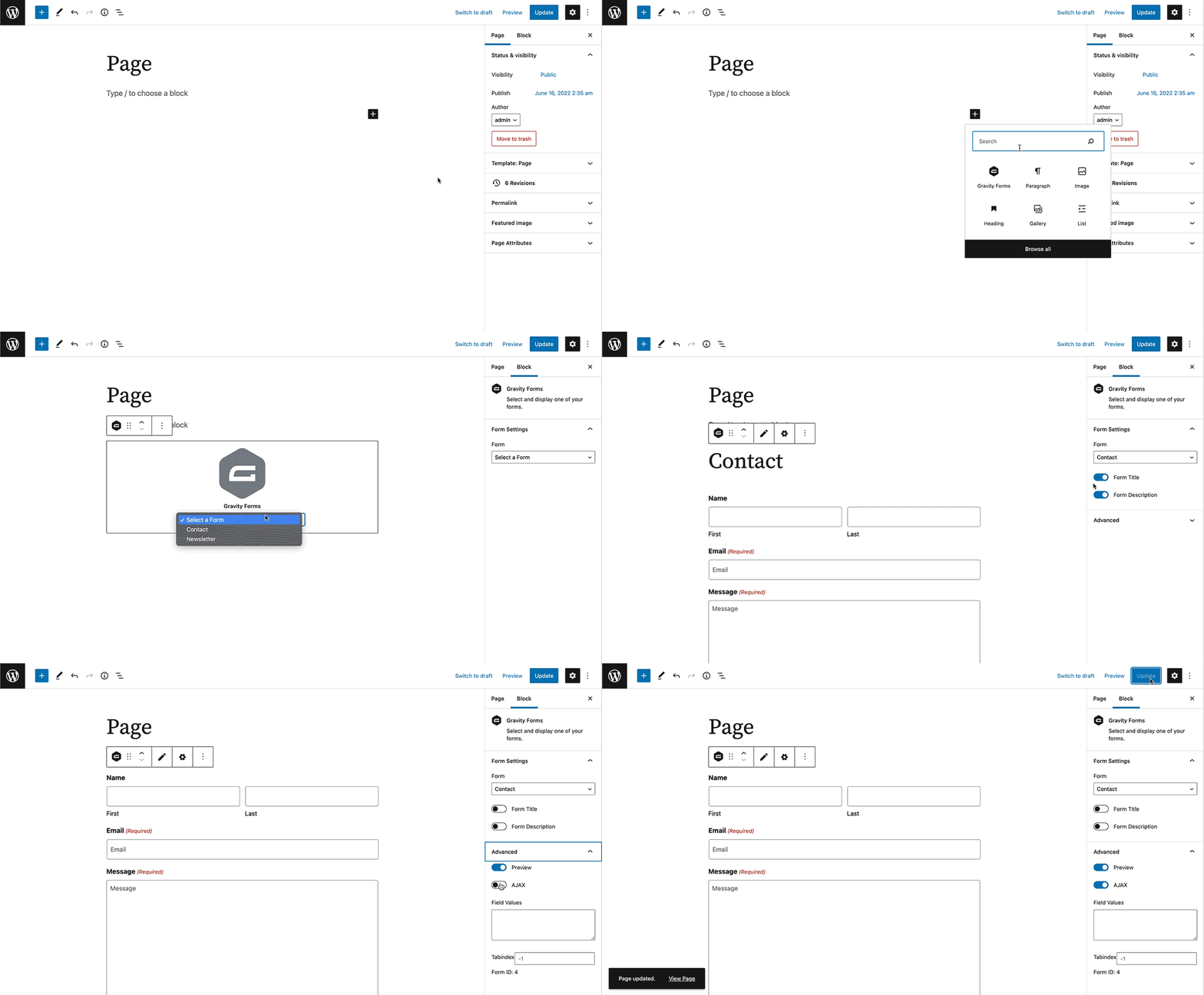
You can add a form to a page or post by using the block function that is a part of Gravity Forms core.
- Open the page or post you wish to add a form to.
- Click the plus sign to add a new block.
- In the Search for a block field, type gravity.
- Under Embeds, click on Form. This will insert the Gravity Forms block.
- Click the Select a Form drop down and choose your form. This will insert the selected form.